
Welcome to the Family
On behalf of your friendly neighborhood Marketing team, welcome to the BrightPath and/or Busy Bees family! 😊
We’re so excited to have you on board. To help you get started, we’ve gathered key marketing resources and information you can refer to anytime. These materials will guide you through our brand standards, digital tools, and creative assets so you can confidently represent BrightPath and/or Busy Bees in everything you do.
Here’s what you’ll find in this section:
- Marketing Portal Overview: Access brand assets, templates, and campaign materials.
- Email Signature Guide: Learn how to set up your professional brand signature.
- Brand Guidelines & Board Standards: Understand how to bring our brand to life consistently.
- Staff Bio Templates: Introduce your team in a brand-aligned way.
- Door Wrap Care Tips: Keep your center signage looking its best.
You’ll also find additional marketing support and resources on the branding site to help your center thrive. If you ever have questions or marketing requests, our team is always here to help, simply reach out to the Marketing department at marketing@brightpathkids.com.
Marketing Portal
We’re excited to introduce the BrightPath and/or Busy Bees Marketing Portal to your center. This is your one-stop shop to order approved print collateral and other branded materials.
What You Can Do
- Order approved BrightPath and/or Busy Bees print materials and signage
- Access ready-to-use designs and product options
- Track orders and view invoices within the portal
Note: The catalog is expanding. Temporary signage and additional collateral will be added over time. As a global leader in child care, we aim to reduce paper waste, please order thoughtfully.
Account Setup (First-Time Users)
- Open the portal link by clicking the appropriate button above.
- Follow the steps below to create your account:
- Click the green “Get an Account” button on the right side under “New Customer?”
- CDs, please create a login using your center email address and set up a password. For ease of use, please make the account password your center name and the center ID number (ie. Avon710001)
- You will then receive an email from 2024@fastsigns.com welcoming you to the portal and confirming your login credentials and password. PLEASE KEEP THIS EMAIL FOR FUTURE USE as marketing will not have access to your login information.
Once you have accessed the portal, you can begin shopping!
Steps for Placing an Order:
- Select Items: Choose the products you need, enter quantities, and fill in any required custom fields.
- Checkout: Select “On Account” for payment and add your shipping details. Orders will ship to your local Central Shipping location for pickup or delivery by your Area Director (AD)—please allow extra delivery time.
- Order Confirmation: After submitting your order, you’ll receive a confirmation notice. Shipping and taxes will be calculated after your order is placed.
- Approval Process: An invoice will be sent to your AD for review and approval. ADs, please reply to each email with your approval (or with notes/feedback prior to approval).
- Payment: Once approved, FASTSIGNS will send the approved order invoice back to the CD with a link for payment by credit card.
- As stated above, please do not select the Credit Card option for payment at checkout.
- This invoice is to be paid by the CD/AD upon receipt using the link provided, even if the items have not yet been shipped or delivered, similar to any other online order system.
- Production & Delivery: After payment, your order will be produced and shipped within approximately 10–15 business days.
Additional Information to Note:
- Please ensure you are using the correct billing address when you are making payments if it is different than your shipping address.
- For non-center staff ordering business cards, please put “N/A” as your designation (if not applicable) and the FASTSIGNS team will exclude this section from your business card.
- The price of all items will be listed as $0.00 until a quantity is selected.
- The “Quantity (Increments of 1)” section has been disabled. Please select quantities using the “Quantity” drop down menu.
- A flat rate for shipping is listed at checkout. As stated above, shipping and taxes will be adjusted depending on location and applied in the order invoice.
Important Budget Information:
- The budget each center has available for marketing collateral is based on each center’s FTE.
- Any orders made come out of each CD/AD’s local marketing budget.
- Work with your Area Director to ensure you have the correct budget for your centers.
If you experience any issues, please reach out to Chris Rolls, our FASTSIGNS vendor, at (416) 456-5734 or chris.rolls@fastsigns.com.
Email Signatures
Please see below instructions on how to update your email signatures to the BrightPath and/or Busy Bees email signature.
If you have any questions about updating your email signature, please don’t hesitate to reach out to us at marketing@brightpathkids.com. For any questions regarding your new BrightPath and/or Busy Bees email address, please contact Ryan Broe, Atlantic or StarPort directly.
New Email Signature:
- Click on the logo below to download your new email signature.
- Follow the video tutorial or written instructions to ensure your signature opens correctly every time you start a new email.
- Remember to personalize your signature with your name, job title, phone number, and address before saving it.
Brand Standards
Brand Guidelines - Board Standards
These are the standardized brand guidelines that are in place for all centers that have received our interior signage package.
Overall Guidelines
- Preferably, any documents displayed in boards should be printed in color.
- There should be no blank holders. If you need a space filler in one or more of the holders for any reason, please use one of the quotes below.
- Any additional documents required to be displayed on the walls should be displayed neatly in a frame or acrylic holder.
- For any collateral that can be printed directly at the centers (or head office) and for additional resources, please visit our Branding Website.
Documentation Boards
- Artwork is to be displayed on documentation boards only.
- Documentation boards are advised to be hung inside the classrooms unless you have excess wall space in long hallways at your center. Please work with your education coach to determine where to place these boards.
- Ideally, families should be able to see the documentation boards inside the classroom from the classroom entrance.
New Interior Signage
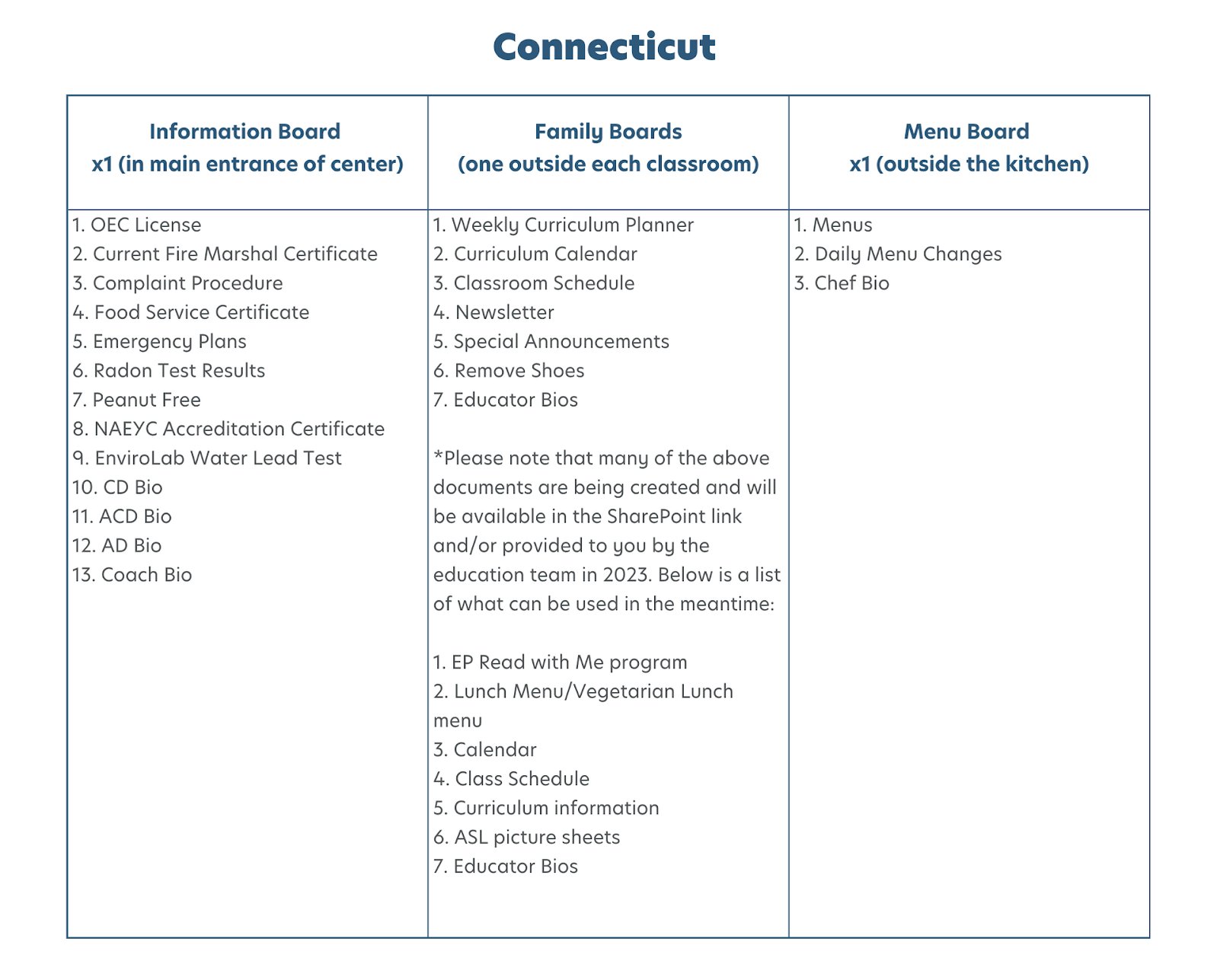
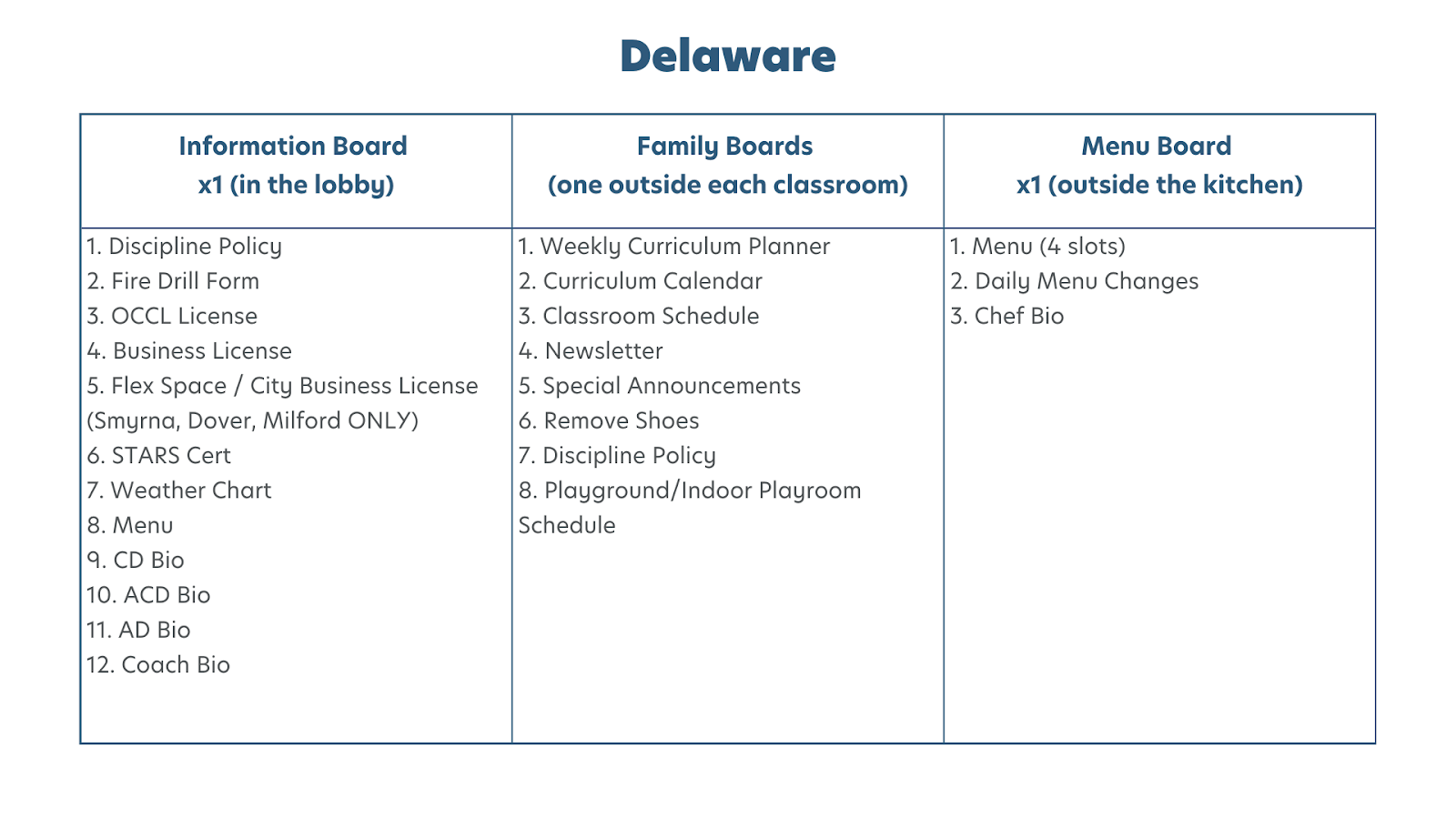
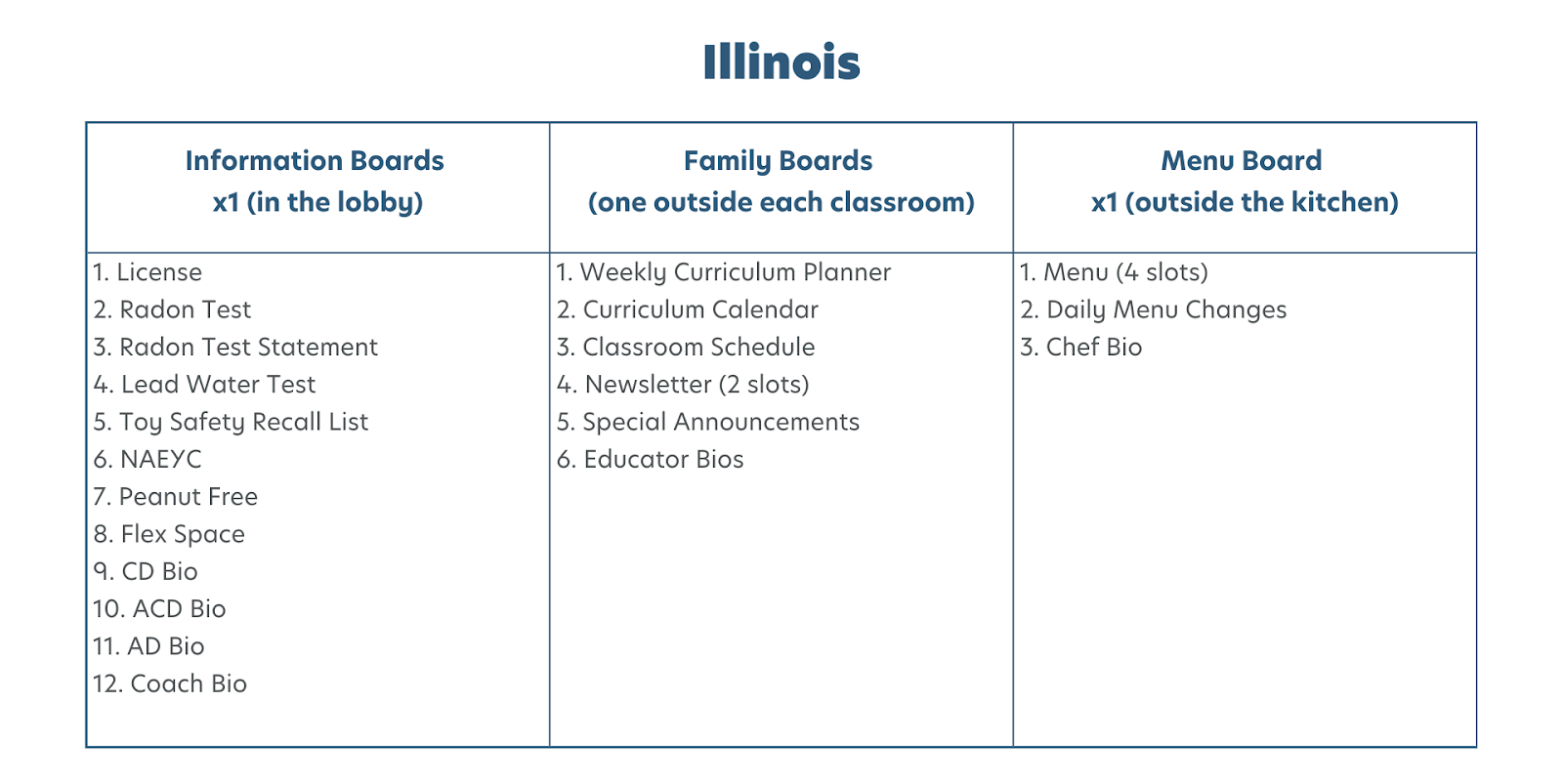
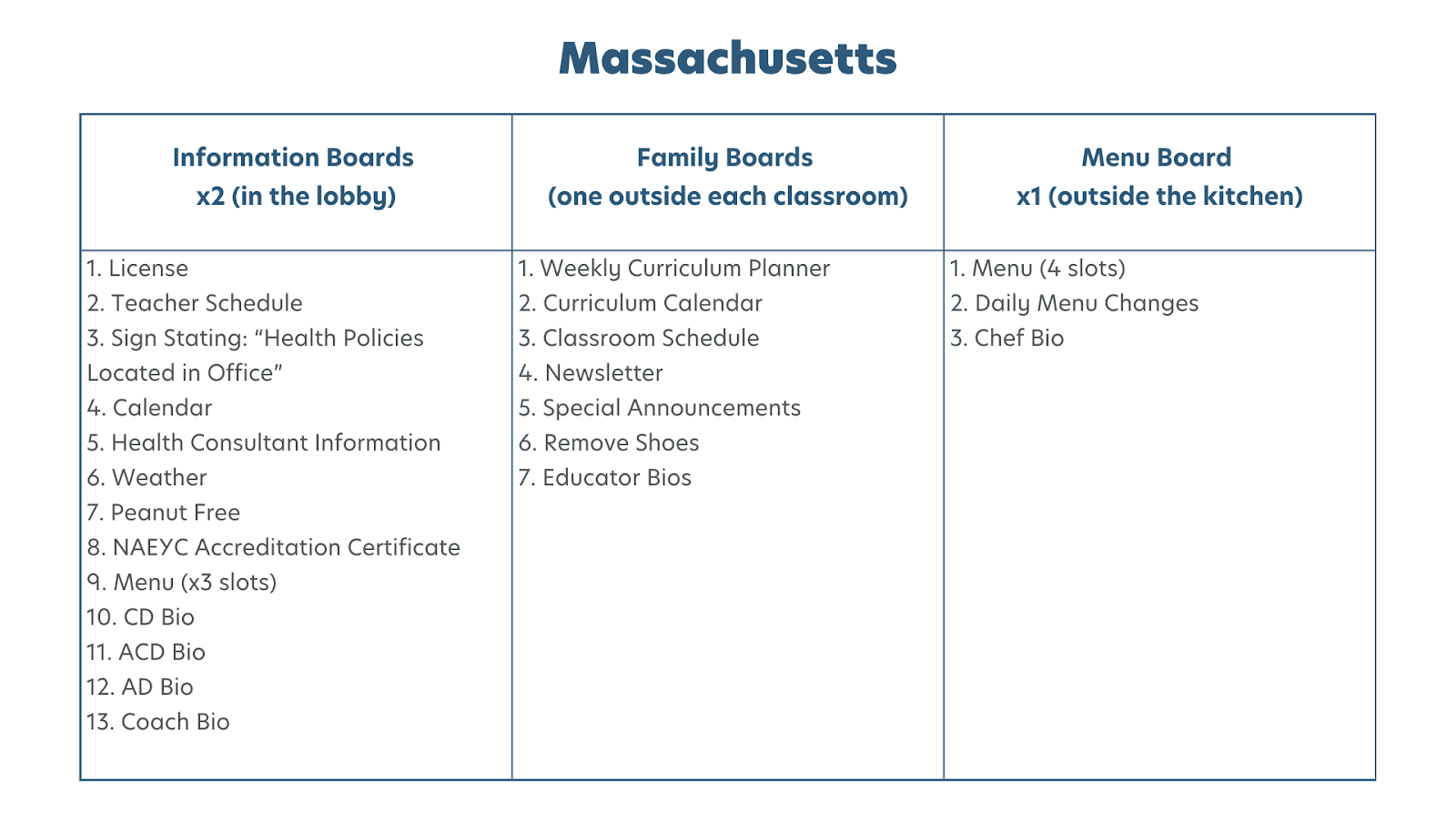
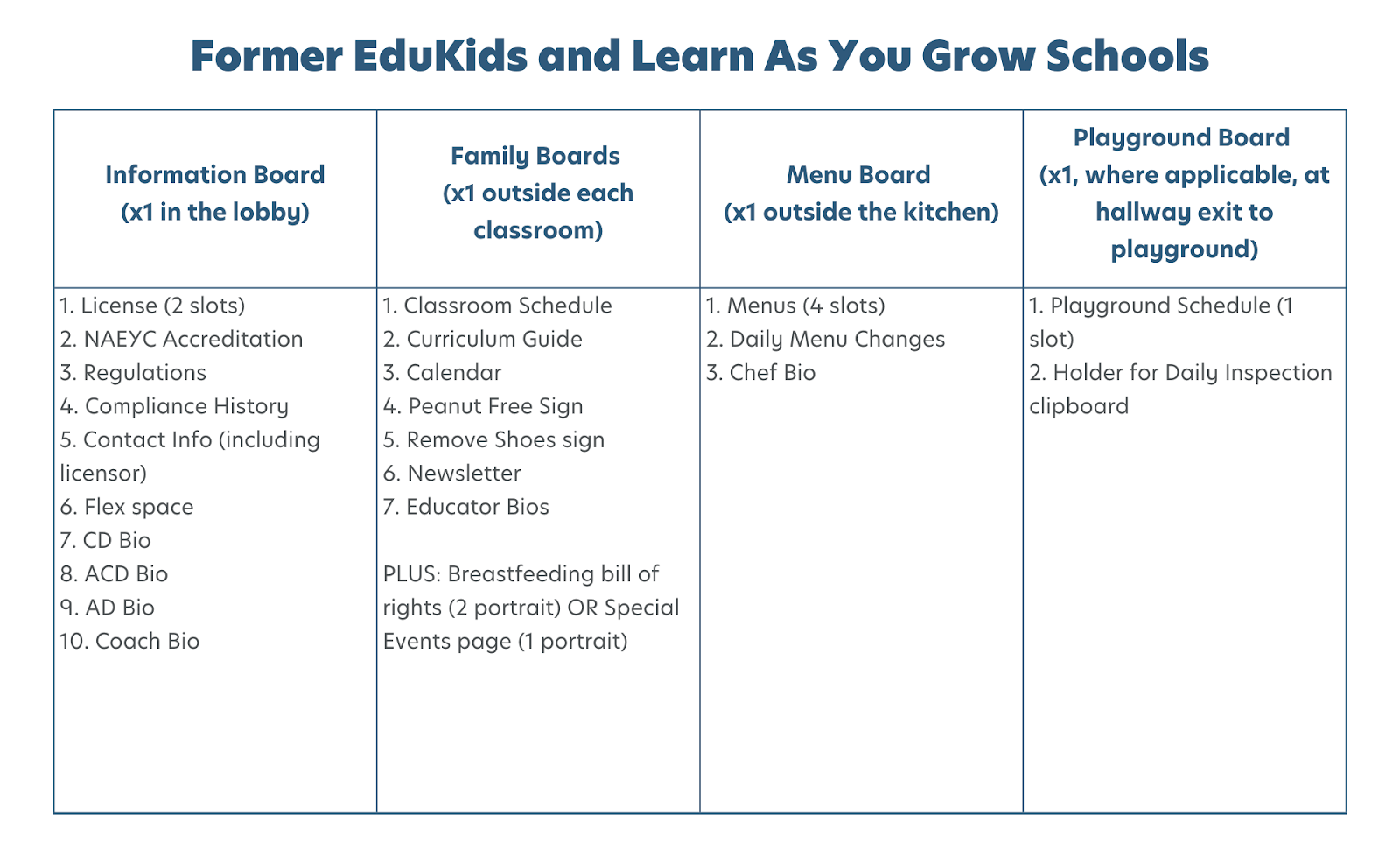
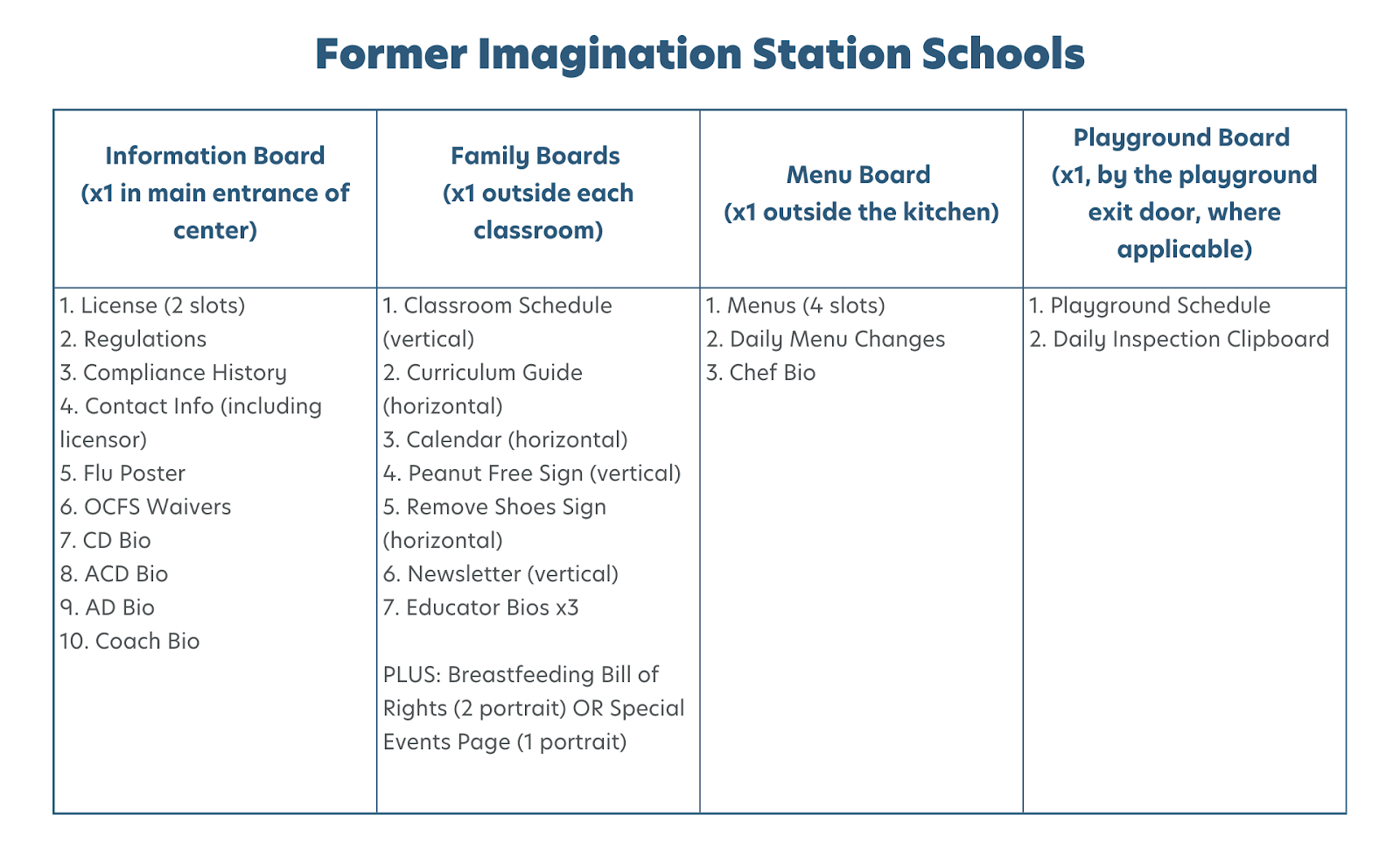
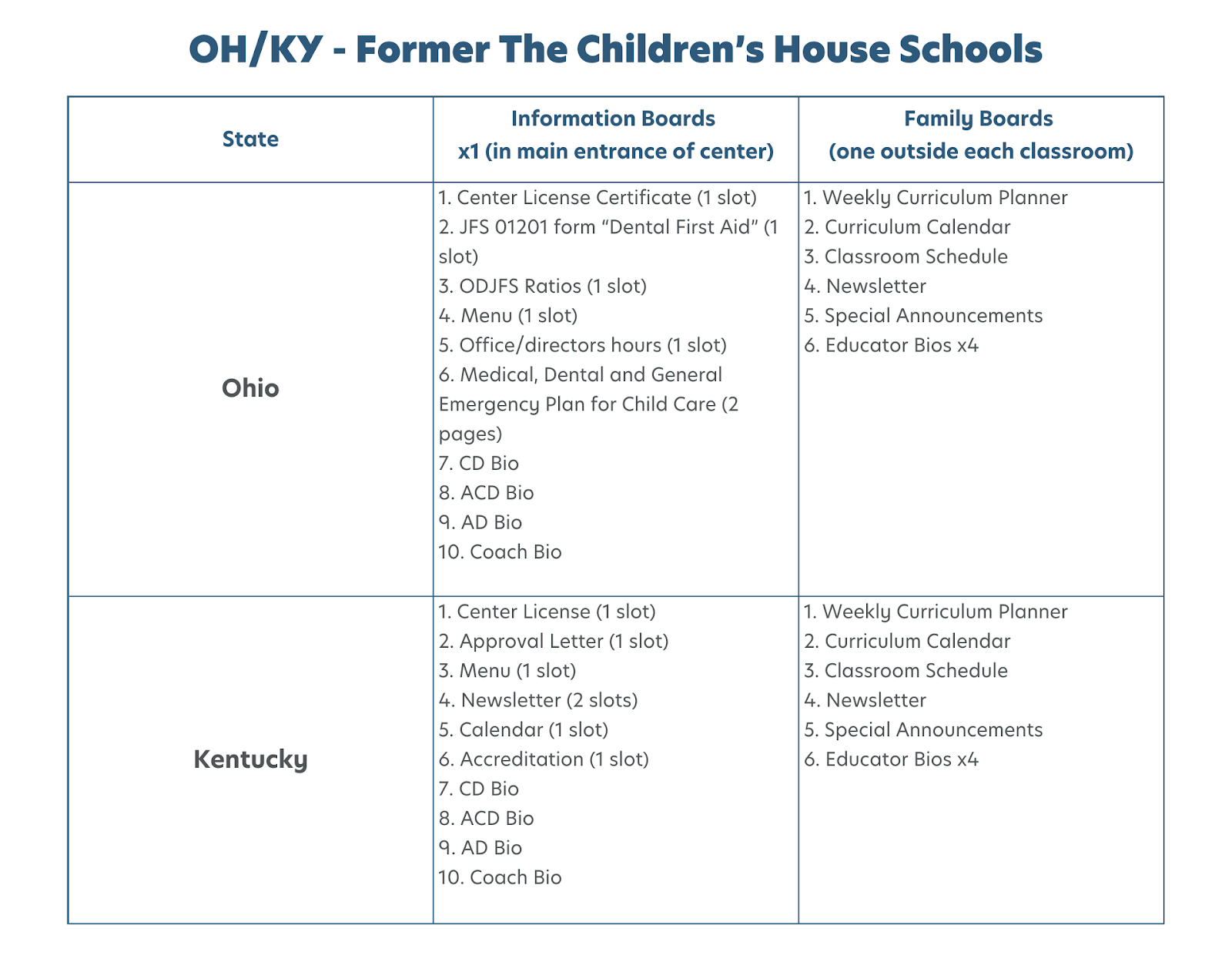
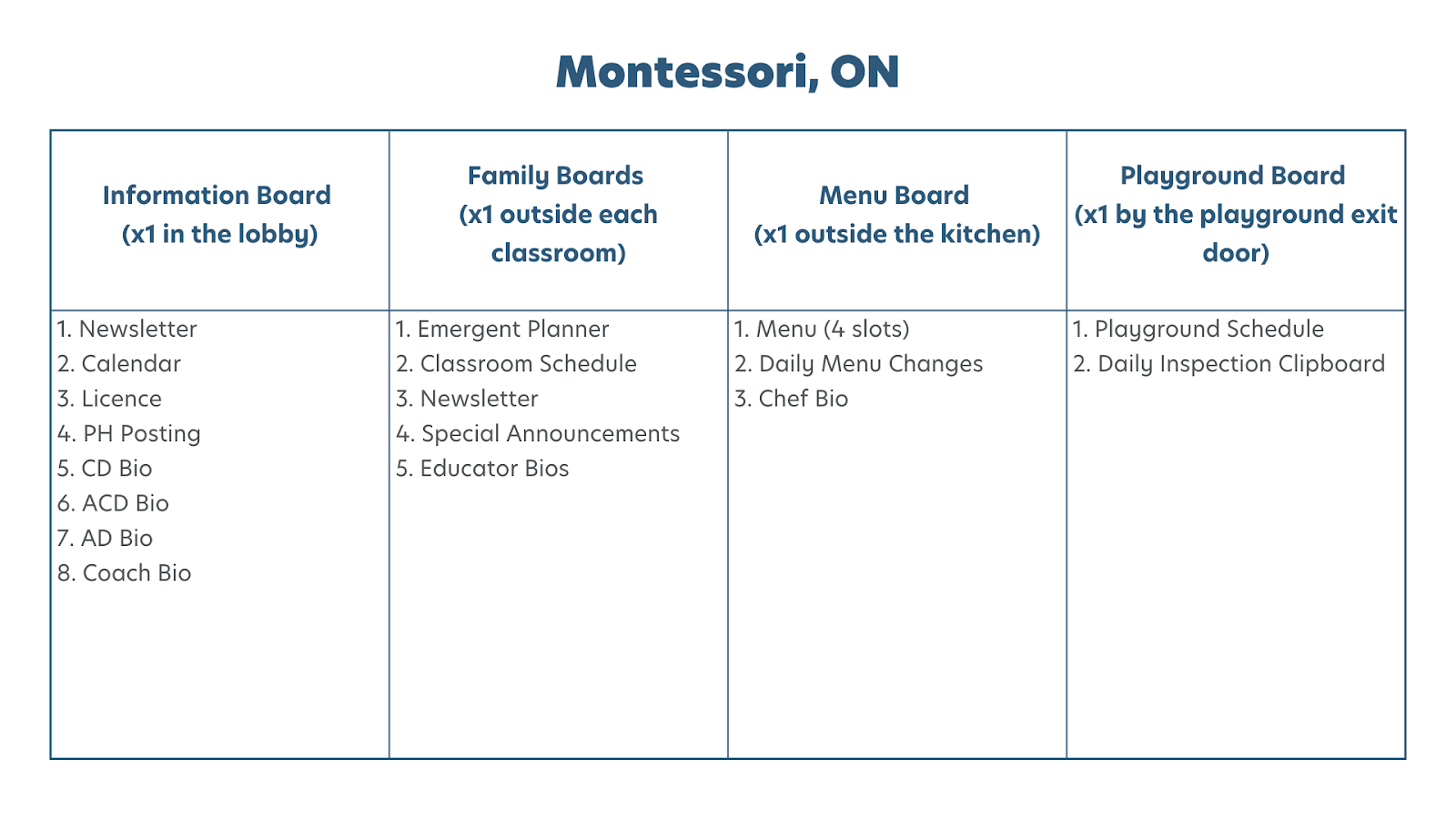
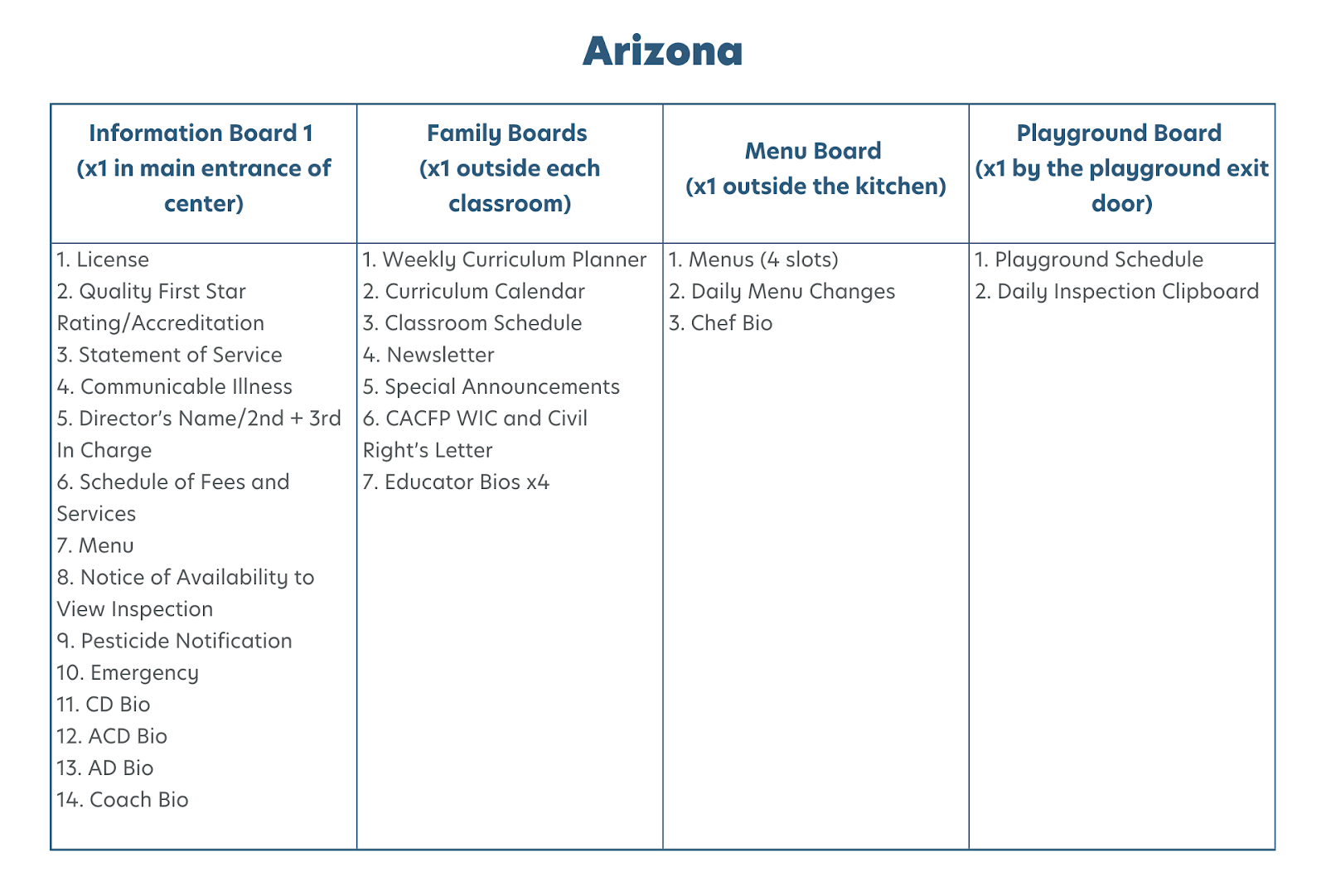
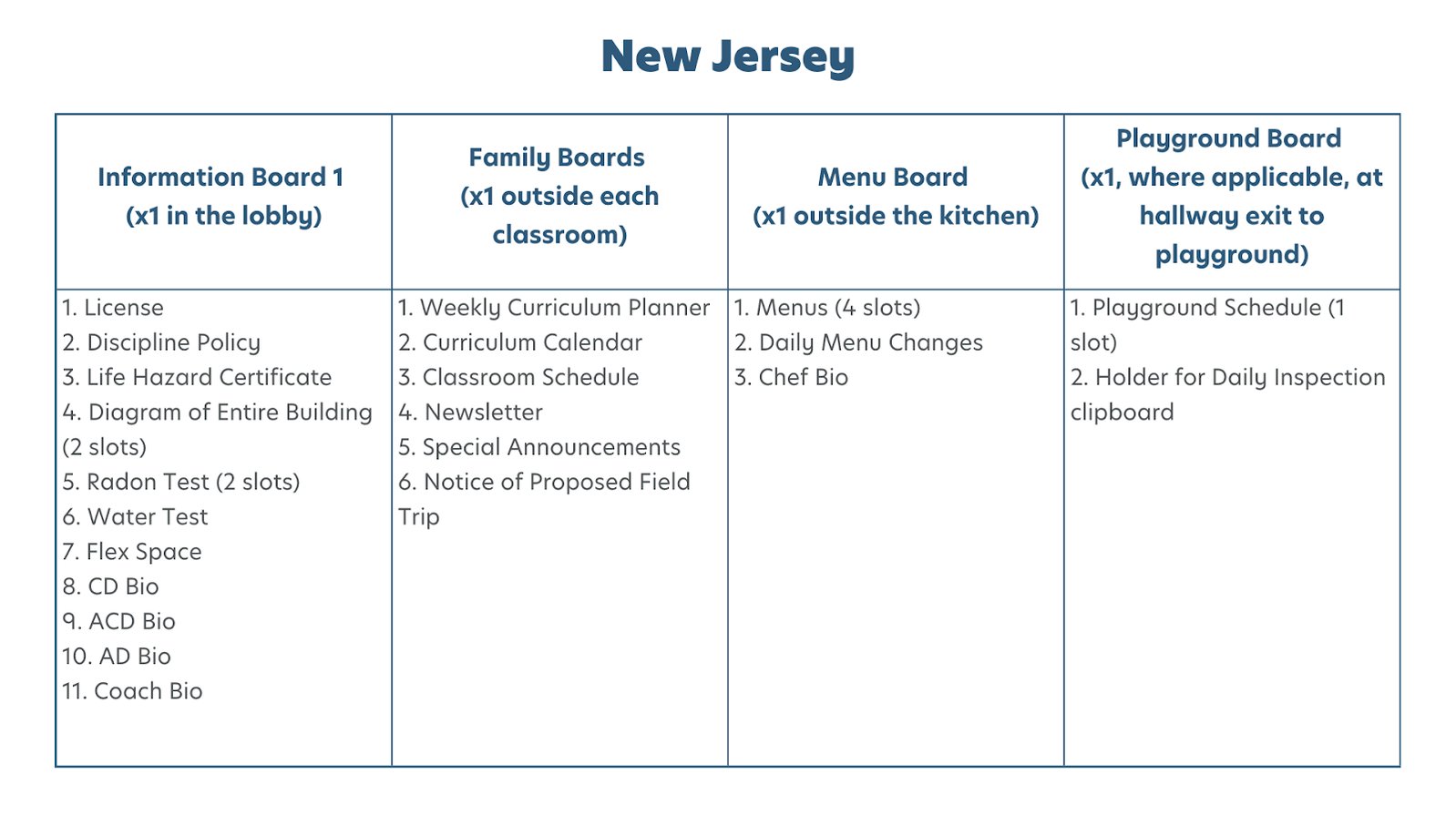
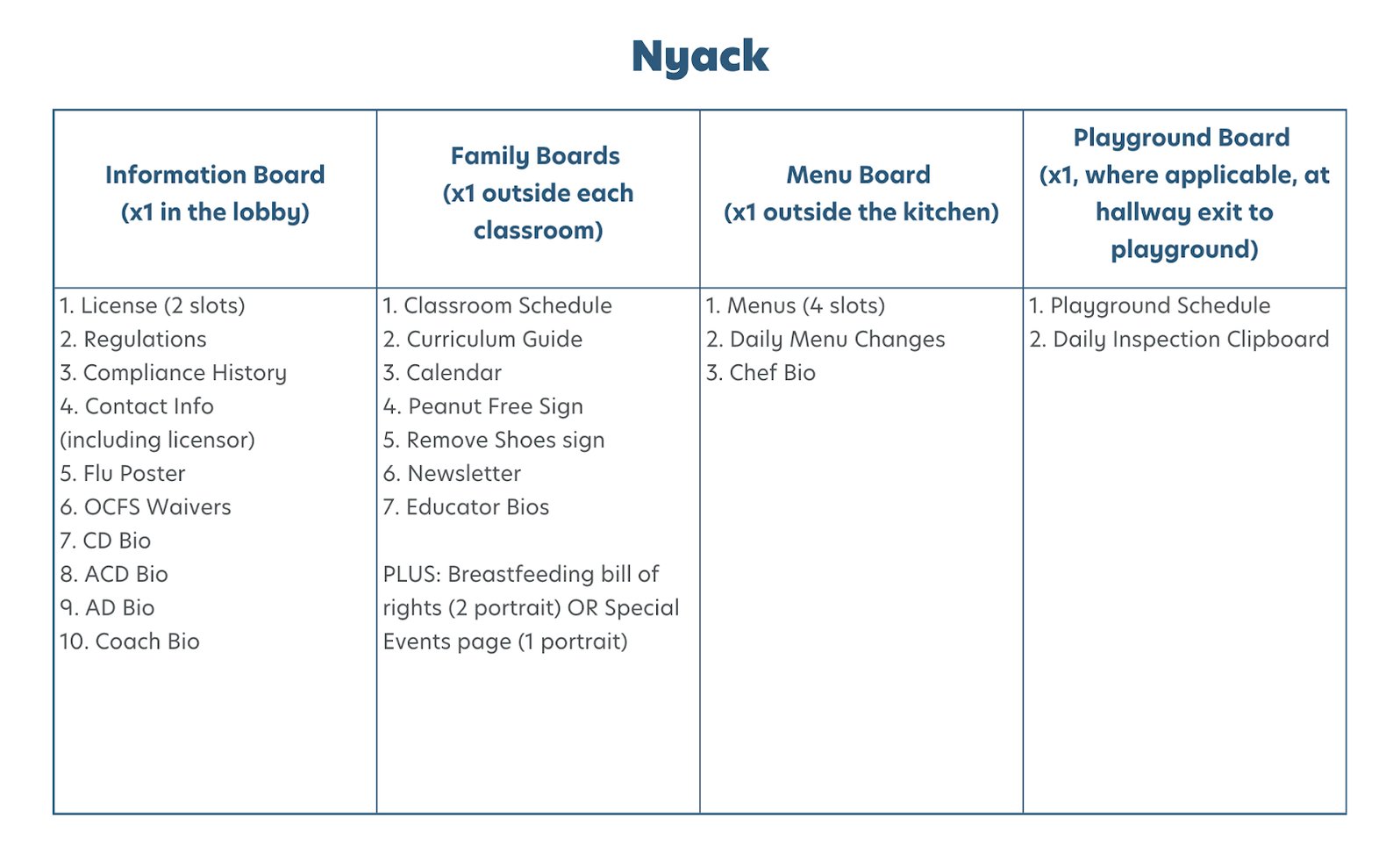
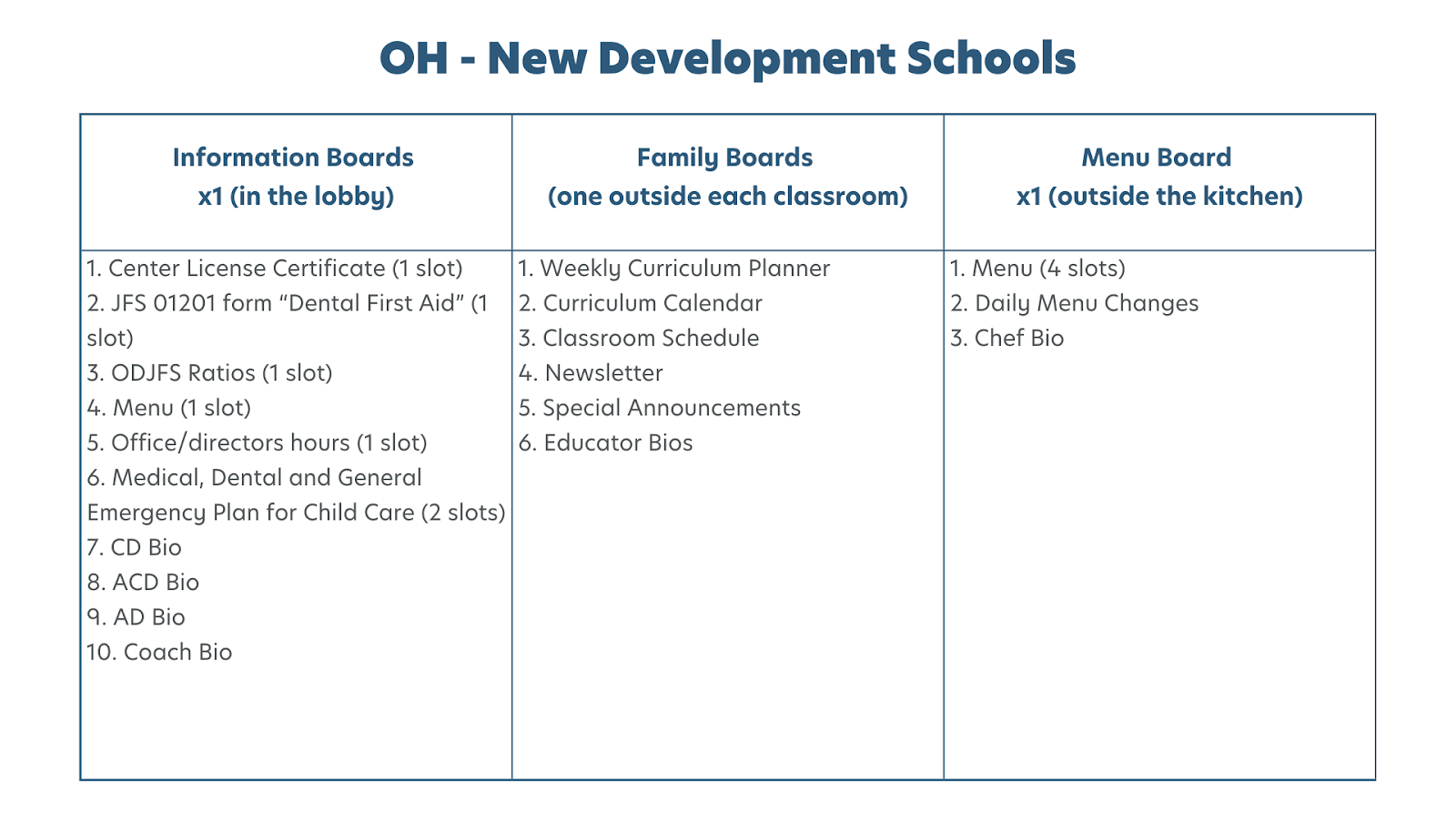
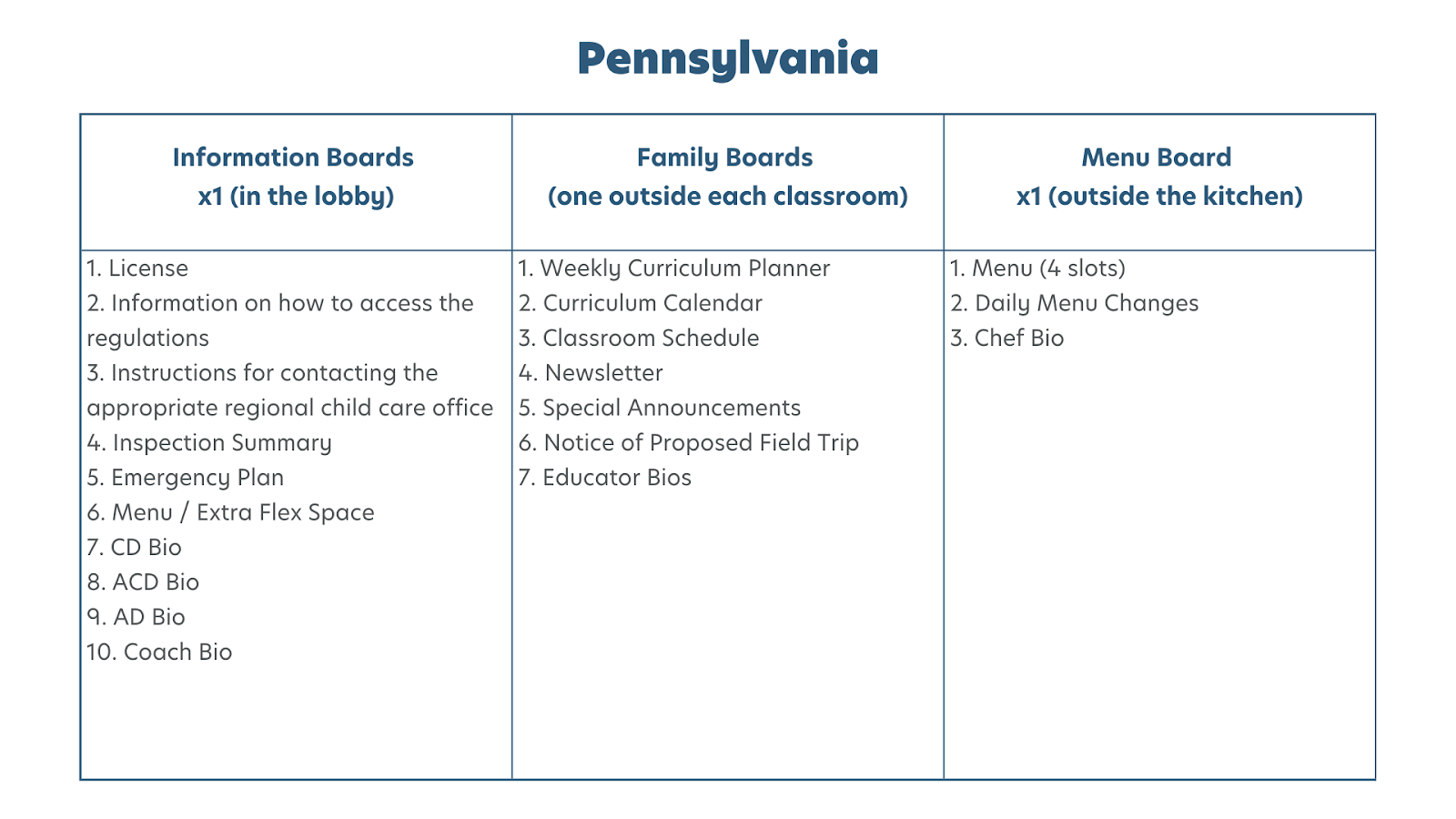
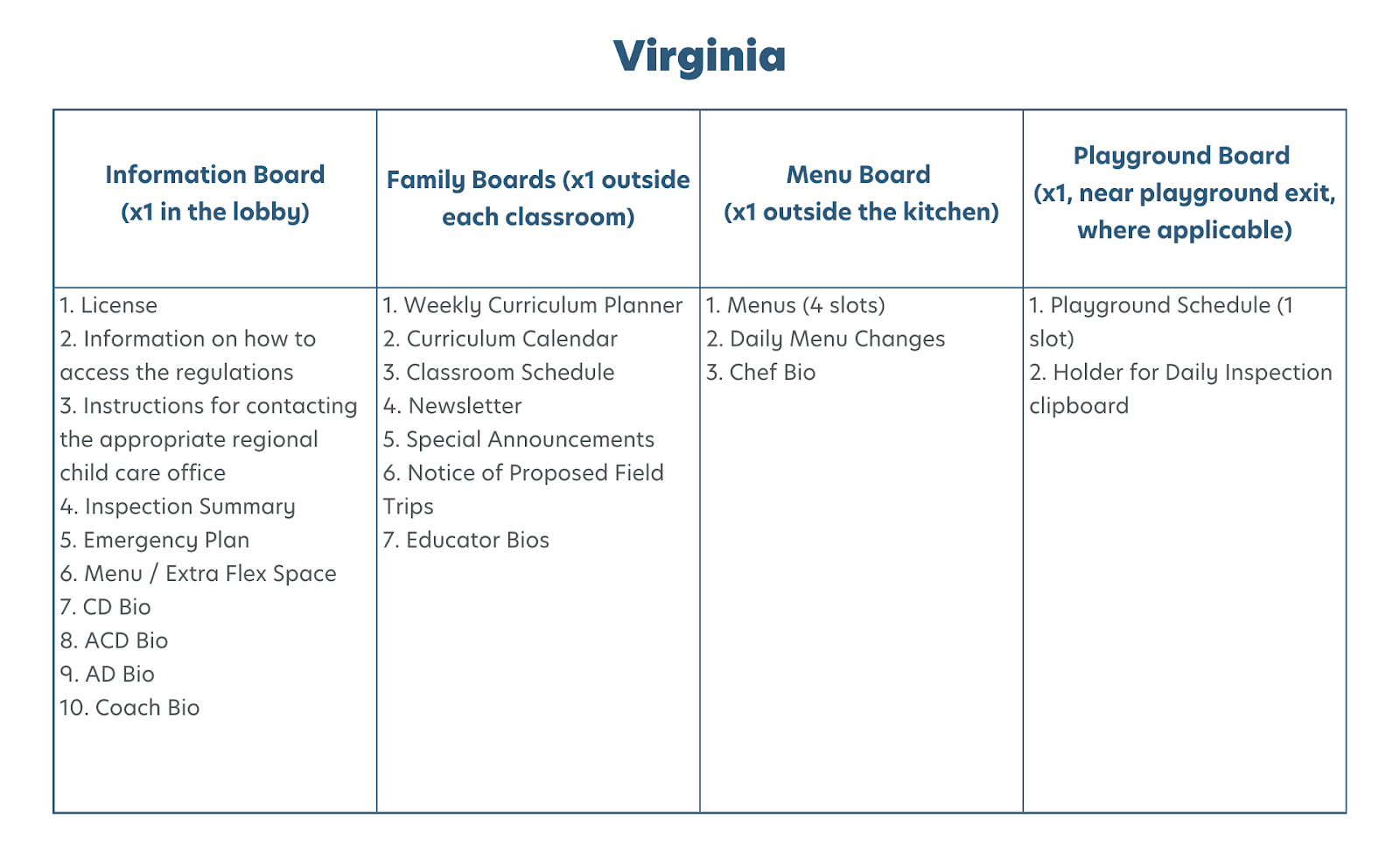
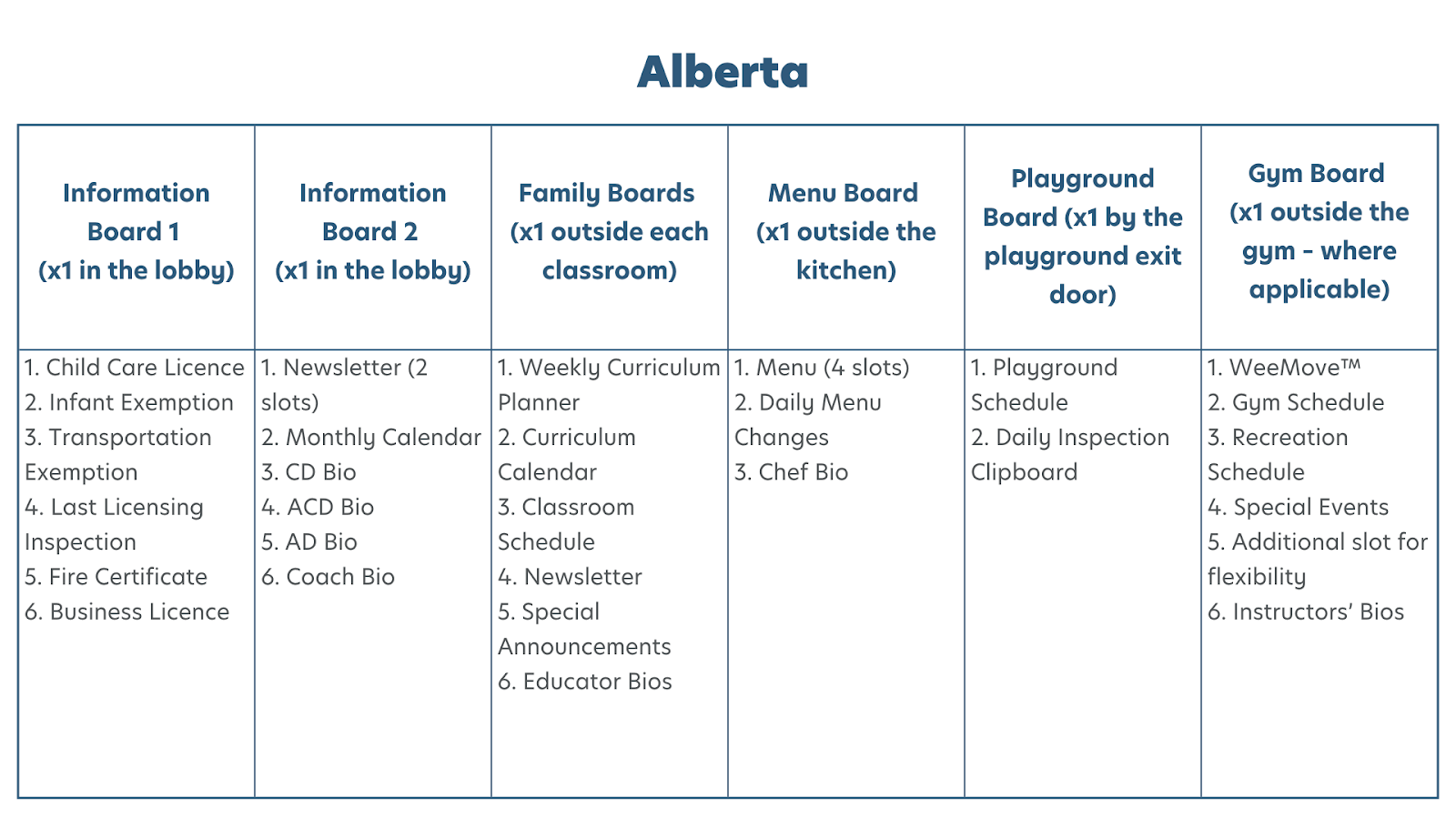
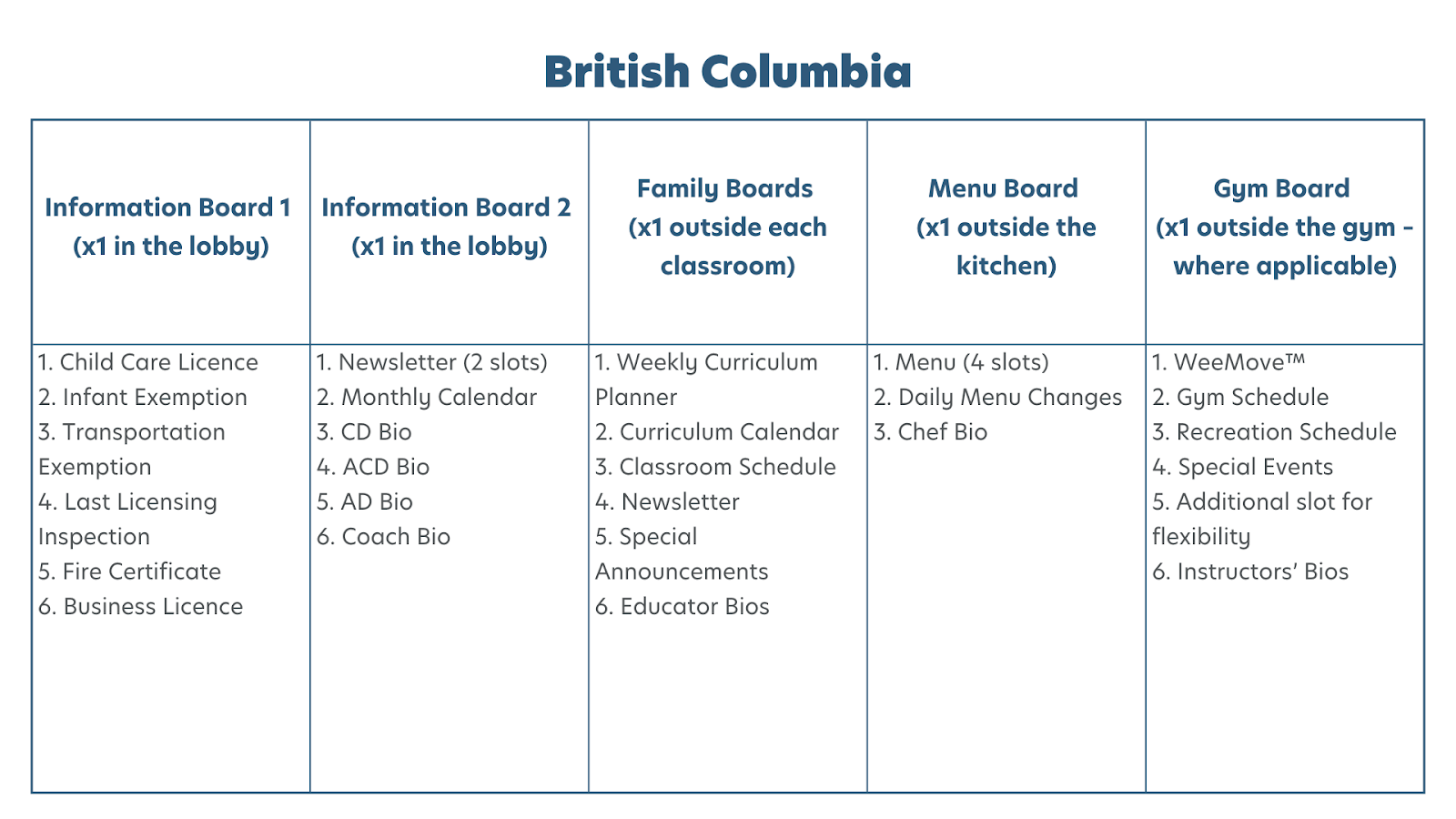
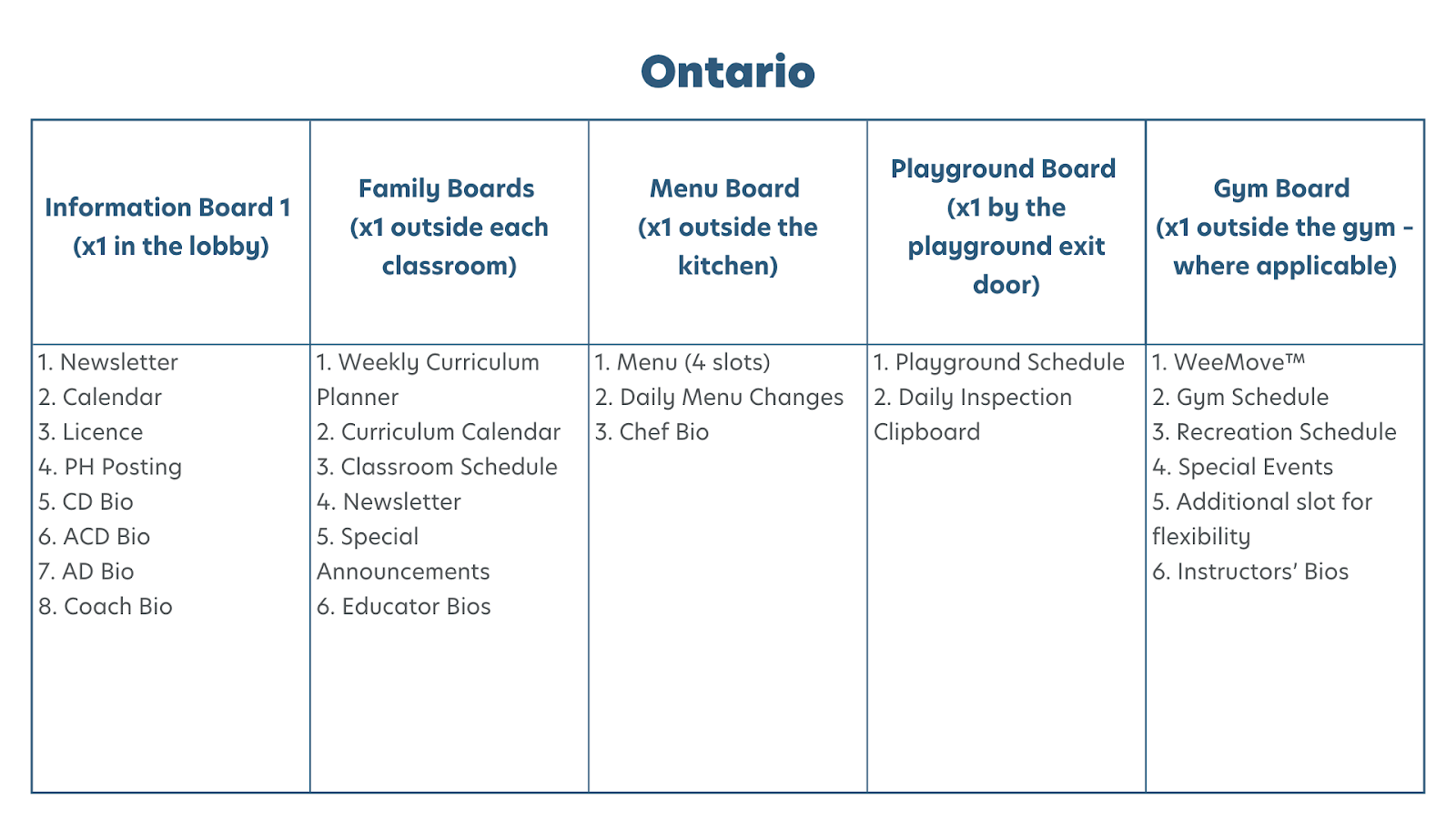
- Please work with your Area Director and your Education Coach to display the correct documents in each of the boards being installed (as specified in each regional drop-down below).
- Any information required to be accessible to families but is not on the list to be displayed in these boards is to be placed in a binder that is neatly labeled and stored in a location where families can easily access it.
Staff Bio Templates
- The directors’, chefs’, and educators’ bio spaces (mentioned in each regional drop-down below) are to be filled using the Staff Bio Templates provided by the marketing team. Please scroll down to the "Staff Bio Templates" section below for additional information.
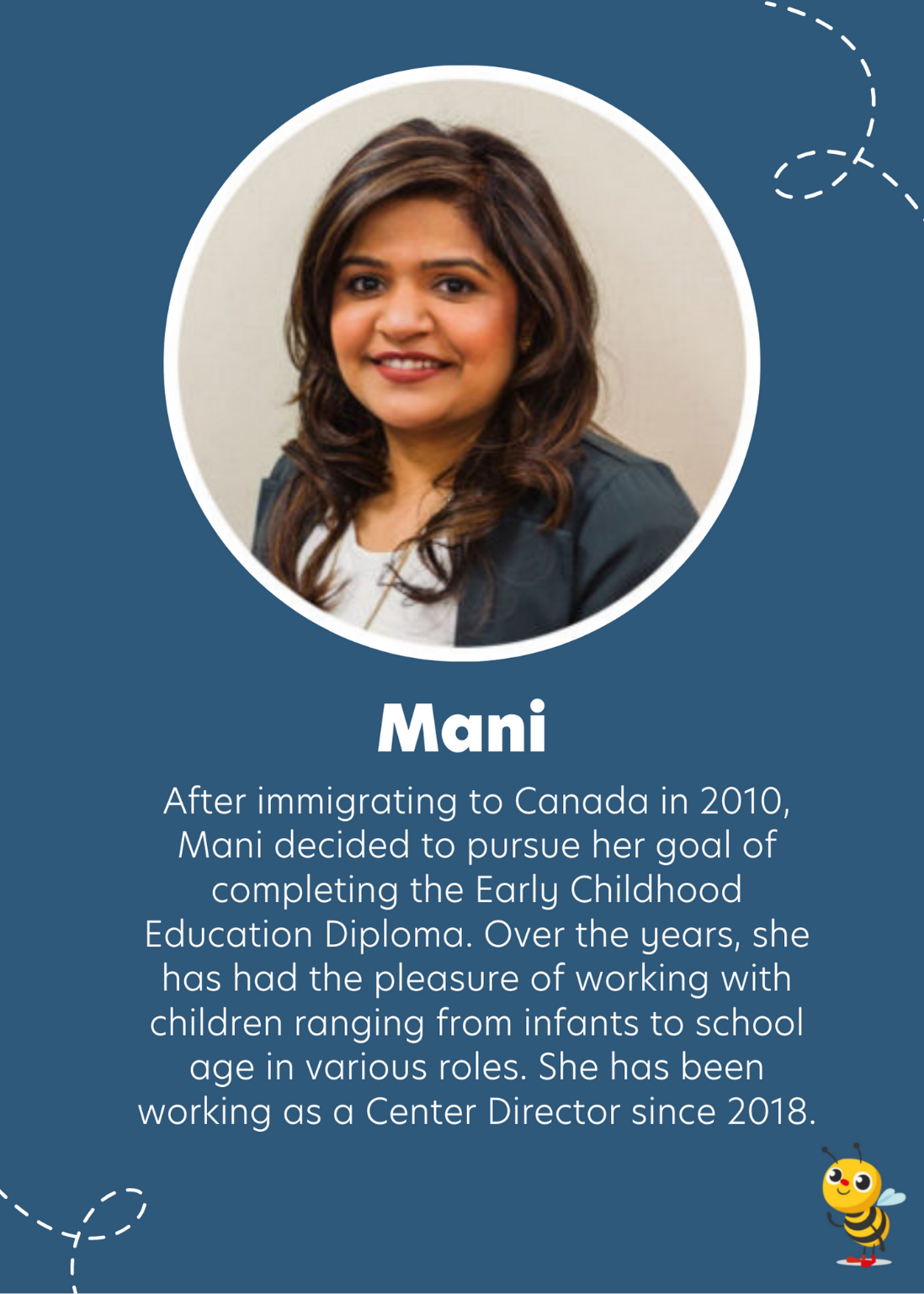
- Bios will include an image, a short description of the employee, and a title, where applicable.
USA
Arizona

Connecticutt

Delaware

Illinois
Massachusetts
New Jersey
New York

Ohio
Pennsylvania
Virginia
Canada
Alberta
British Columbia
Ontario

Staff Bio Templates
Below you will find a collection of PowerPoint files containing the Center Director, Assistant Center Director, Area Director, Education Coach, Educators, and Chef bio templates. Please ensure you are using the correct bio templates for the corresponding boards/frames at your center. See below for specific details. If you have any questions about this, please don’t hesitate to reach out.
BrightPath Canada
BrightPath US
Busy Bees
A few important notes:
- Ideally, these bios should be printed in color, so please work with your AD to print them at Staples or the head office if needed.
- Please limit text to the size of the sample paragraph provided in the files.
- Please make sure the image being attached to the circle is originally cropped to a square (and not a rectangle). This will ensure the image does not look expanded or stretched in the circle.
- Please remove the instruction slides in the files and only print out the first slide, once edited and finalized on your end.
Where to display each bio:
- Center Director: in board or frame in lobby
- Assistant Center Director: in board or frame in lobby
- Area Director: in board or frame in lobby
- Education Coach: in board or frame in lobby
- Educators: in board or frame outside corresponding classroom
- Chef(s): in board or frame outside kitchen (where applicable)
After you have edited and finalized the templates, they should look similar to the samples below:
Follow These Steps
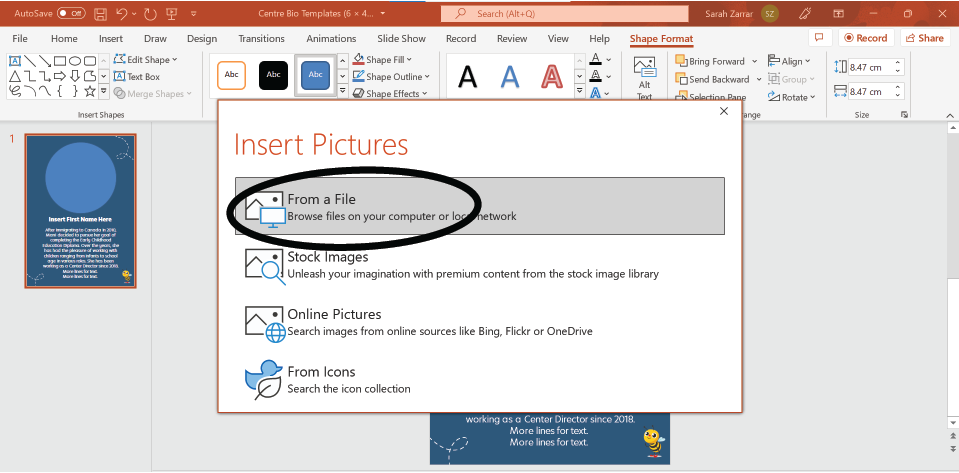
1. Click on the circle and press the tab ‘Shape Format’ that will pop up on the top right corner.
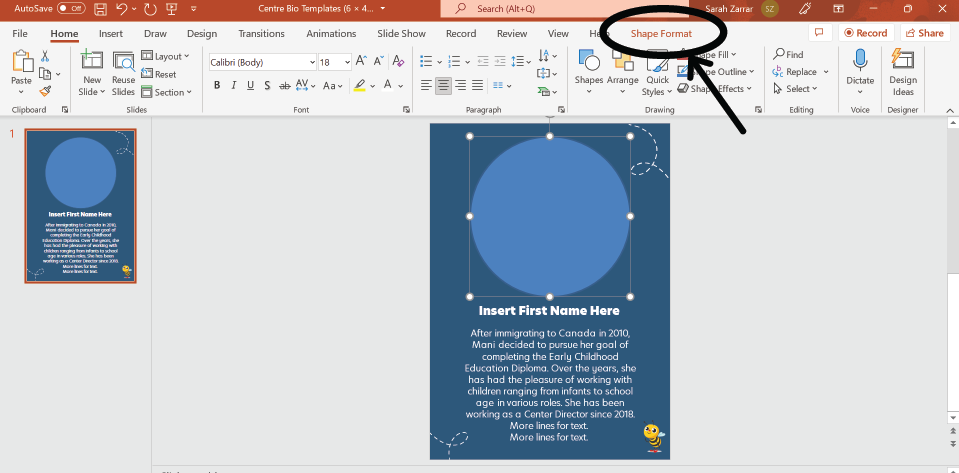
2. On the ‘Shape Format’ tab, press ‘Shape Fill’ and then ‘Picture.’ 
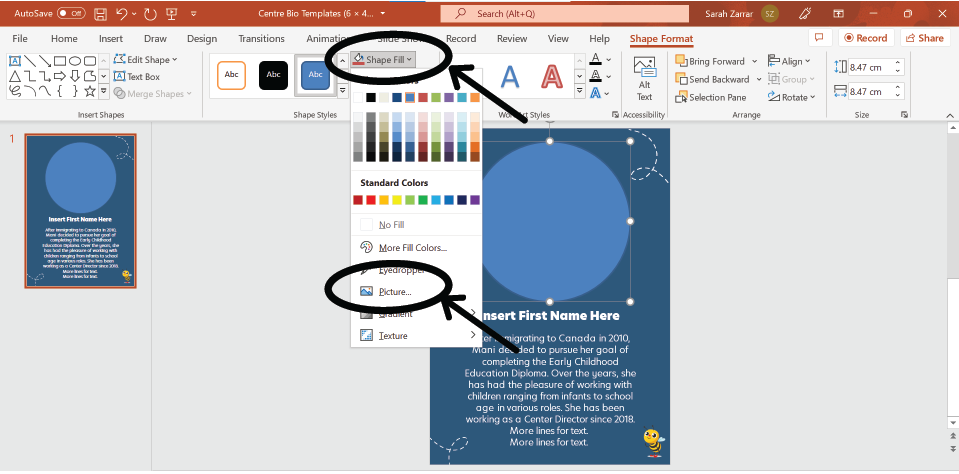
3. This will prompt the following window to pop up. Press ‘From a File’ and choose the picture you’d like to attach.
Door Wrap Care
This is how to care for your new door wraps. These wraps are made to last, however, they are still delicate and should be treated with the utmost care to ensure their longevity.
-
Please avoid having sharp objects near the door wraps. The door wraps hold up well to reduce small scratching, peeling, staining, etc. but they are not resistant to sharp edges bumping or ripping into them. They will rip if caution is not used.
-
Please only clean the door wraps with soap and water. Diluted rubbing alcohol can also be used if needed, but NO harsh chemicals should come into contact with the door wraps.