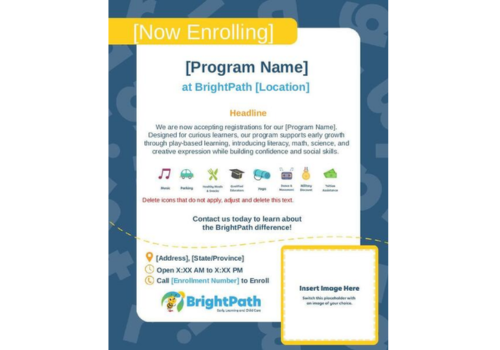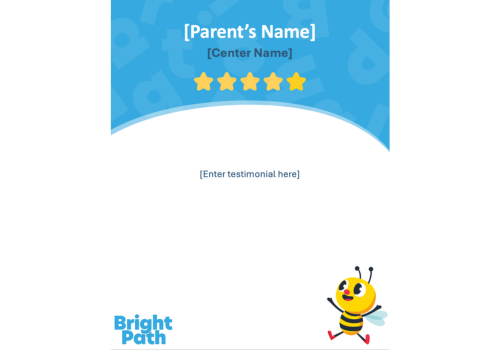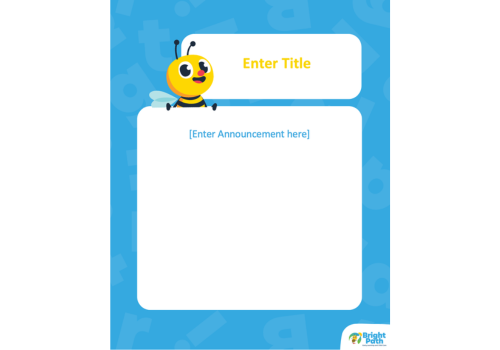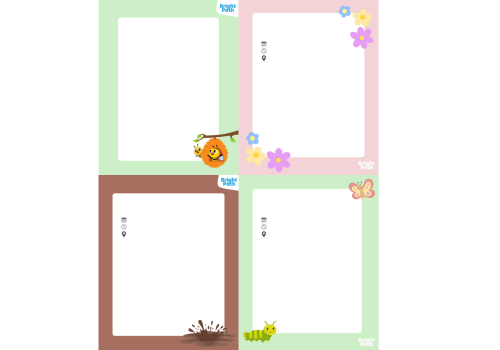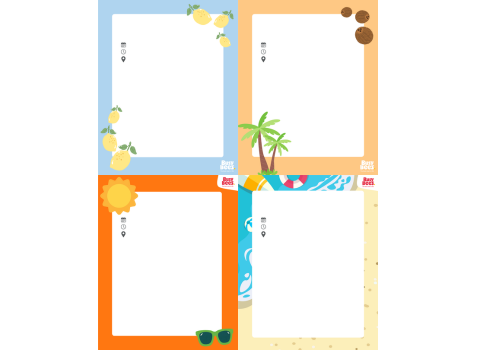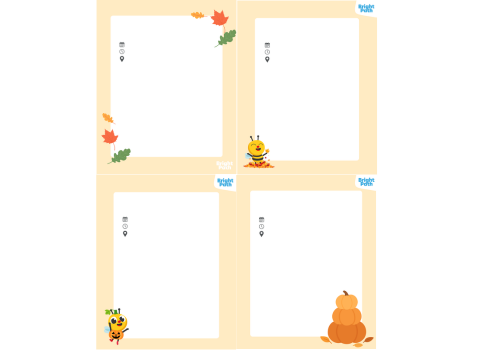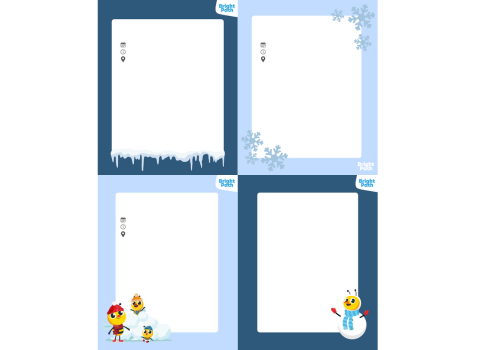







BrightPath Social Media Templates
Please note: The template files below are PNG Images. To use the PNG Images, please download file and open them on Canva, or preferred editing tool (Instructions below).
*Please be aware that files are marked as 'Feed' and 'Story' posts to accommodate Instagram's content ratios*
Generic Templates
Custom Templates
Special Dates
Instructions:
How to Download a Photo
- Find and click the photo file you want to use.
- Click “Download.”
- The photo will now download to your computer, usually in your Downloads folder.
How to Use the Photo in Canva
- Go to Canva.com and log in.
- Open a design or start a new one (for example, choose a 4:5 Instagram post).
- On the left side of the screen, click “Uploads.”
- Click “Upload files.”
- Find your downloaded photo in the 'Downloads' folder and click Open.
- Once the photo uploads, click on it, it will appear on your design.
- You can resize and move to fit page.
- Now you can edit post with Bee Illustrations and text and/or other available stickers through the app.
How to Add the Photo as a Background in PowerPoint
- Open Microsoft PowerPoint.
- Open an existing presentation or create a new slide.
- Go to the slide where you want the background image.
- Right-click anywhere on the slide and select “Format Background.”
- In the Format Background panel, choose “Picture or texture fill.”
- Click “Insert” (or “Picture source” → “From a File”).
- Find your downloaded photo in the Downloads folder and click Insert.
- The photo will now appear as the slide background.
- If needed, adjust transparency or positioning using the Format Background options.
- Close the Format Background panel when finished.