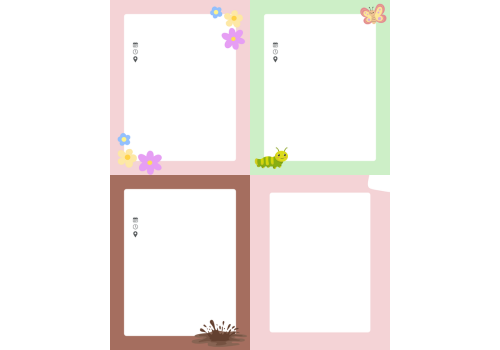



Kid Works Social Media Templates


Keeping Our Brand Consistent

To protect BBNA’s brand consistency and visual identity, AI-generated imagery should not be used in BBNA marketing materials. This includes uploading BBNA templates into AI generators to create or complete flyers or graphics.

Need something custom? Submit a Design Request Form and our Marketing team will be happy to help. For announcements, events, or promotions, email marketing is also a great alternative that allows you to communicate quickly while staying on brand.


Please note: The template files below are PNG Images.  To use the PNG Images, please download file and open them on Canva, or preferred editing tool (Instructions below).

*Please be aware that files are marked as 'Feed' and 'Story' posts to accommodate Instagram's content ratios*

Generic Templates

View our generic templates below:

Back to top

Summer Camp Post Templates

Back to top

Custom Fillable Templates

Back to top

Seasonal Templates

Back to top

Custom Canva Templates

Back to top

Special Dates

The Week Of The Young Child

Instructions:

How to Download a Photo

- Find and click the photo file you want to use.

  • Click “Download.”
  • The photo will now download to your computer, usually in your Downloads folder.
How to Use the Photo in Canva
  • Go to Canva.com and log in.
  • Open a design or start a new one (for example, choose a 4:5 Instagram post).
  • On the left side of the screen, click “Uploads.”
  • Click “Upload files.”
  • Find your downloaded photo in the 'Downloads' folder and click Open.
  • Once the photo uploads, click on it, it will appear on your design.
  • You can resize and move to fit page.
  • Now you can edit post with Bee Illustrations and text and/or other available stickers through the app.
How to Add the Photo as a Background in PowerPoint
  • Open Microsoft PowerPoint.
  • Open an existing presentation or create a new slide.
  • Go to the slide where you want the background image.
  • Right-click anywhere on the slide and select “Format Background.”
  • In the Format Background panel, choose “Picture or texture fill.”
  • Click “Insert” (or “Picture source” → “From a File”).
  • Find your downloaded photo in the Downloads folder and click Insert.
  • The photo will now appear as the slide background.
  • If needed, adjust transparency or positioning using the Format Background options.
  • Close the Format Background panel when finished.